 Pelican
Free, no sign-up, no email address. You are welcome to adapt both files and share them within your business.
What's in the template
Most order list templates online are generic purchase order forms with item codes and a price column. That does little for a kitchen. This template is laid out the way kitchens actually order:
- Sorted by product category. Fruit & veg, meat, fish, dairy & eggs, dry goods, frozen, drinks, non-food. In the PDF each category has its own fixed block; in Excel you pick it for each row and sort by it.
- Unit as a separate column. Kilo, case, bunch, tin. Without a unit, "3 cream" quickly becomes the wrong quantity.
- Who added it, on every row. The person who wrote the item down is named right next to it. When a quantity looks odd, you know whom to ask.
- Order status. Open, ordered or delivered. When the delivery arrives, you see at once what is still outstanding. In the PDF it is a tick box.
- Space for the rep. The PDF has a notes field at the bottom of every page for special requests and queries.
| Category | Item | Unit | Quantity | Supplier | Added by | Status |
|---|---|---|---|---|---|---|
| Fruit & veg | Vine tomatoes | Case | 2 | Harris Fruit & Veg | Jake | ordered |
| Fruit & veg | Basil | Bunch | 6 | Harris Fruit & Veg | Priya | open |
| Meat | Beef fillet | kg | 4 | Walsh Butchers | Chef | ordered |
| Dairy & eggs | Double cream | Litre | 12 | Northern Wholesale | Priya | delivered |
Why by category and not alphabetically? Because that is how your supplier thinks. The greengrocer wants to see the veg lines, the butcher wants his. One click on the arrow next to "Category" sorts the list, and during the rep visit you simply read out one block instead of jumping between onions, lemons and sugar.
How to use the order list in day-to-day kitchen work
A template is downloaded in seconds. Whether it actually gets used comes down to four small things:
- One fixed place, not three. The list hangs somewhere everyone passes every day, usually the walk-in or the pass. Three sheets on three doors is the paper chaos all over again.
- Tie a pen to it. Sounds trivial, but it is the most common reason nothing gets written down. If you have to look for a pen first, you make a mental note "for later" and forget.
- Write it down straight away, not at the end of the shift. The moment you take the last case of tomatoes off the shelf is the only moment you are sure to remember.
- Fixed order days. Write at the top when each supplier comes. Then the team knows the deadline for getting needs on the list.
Before ordering, the head chef goes through the list, checks the quantities and adds anything the team missed. How to organise that process properly is covered in detail in the guide to the restaurant ordering process.
Where paper and Excel reach their limits
So you know what you are getting into: this template solves the format problem very well. It does not solve the team problem. If not one but five people report needs in your kitchen, this is what happens day to day:
- The printed list hangs in one place. Needs arise everywhere: in the walk-in, at the pass, in the dry store.
- Excel lives on the office computer. Between two services, with wet hands, nobody opens a spreadsheet.
- Handwriting is illegible, lines appear twice, and in the end the head chef retypes everything anyway.
- In mixed-language brigades one person writes "tomatoes", another "pomodori". On paper, that becomes two orders.
- Once the order is placed, the list is blank again. What was ordered, when, from whom and at what price is gone.
The alternative: a shared order list in an app
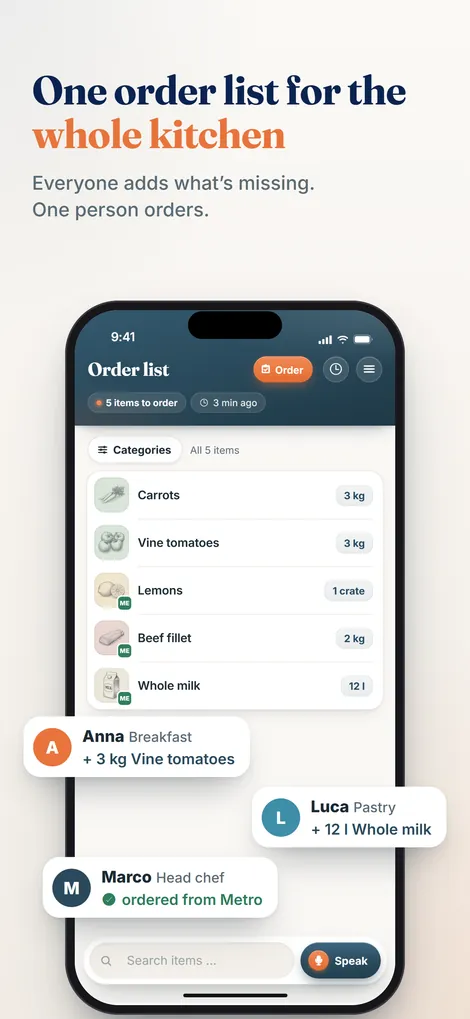
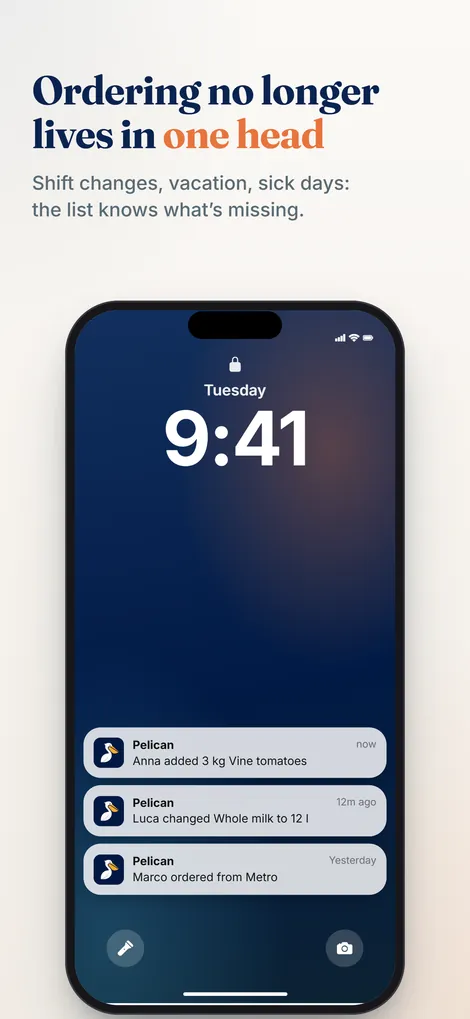
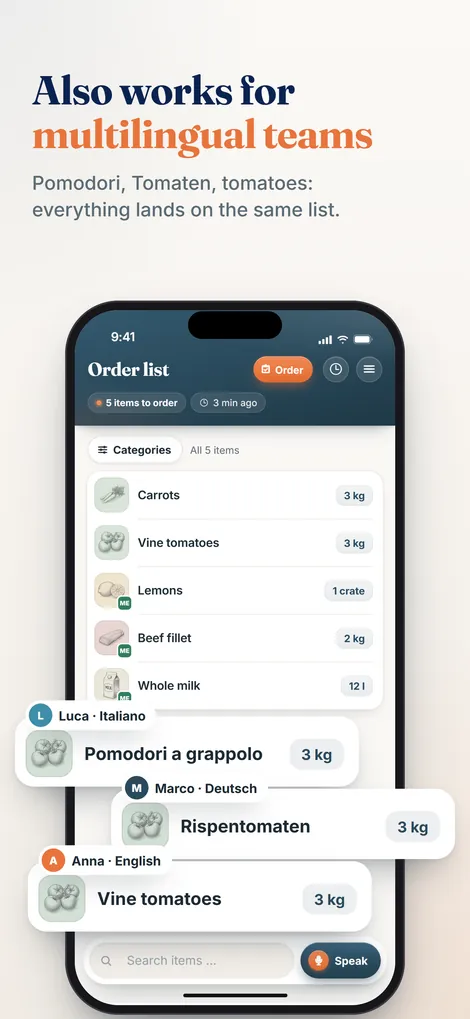
This is exactly where Pelican comes in. Instead of a file, there is one shared list the whole kitchen team writes to, each person from their own phone, the moment they spot a gap. Fastest by voice: "two cases of vine tomatoes, ten kilos of flour". Pelican recognises item, quantity and unit, files it under the right category and adds the name of whoever reported it.
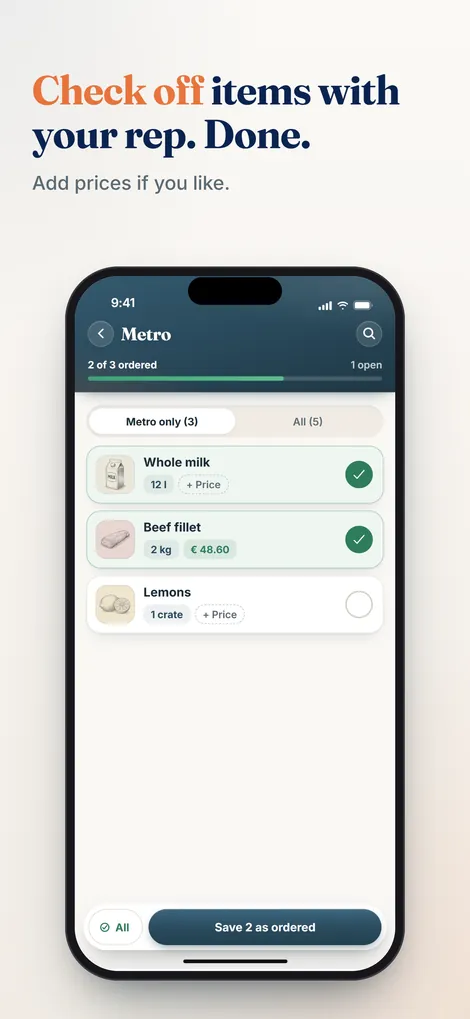
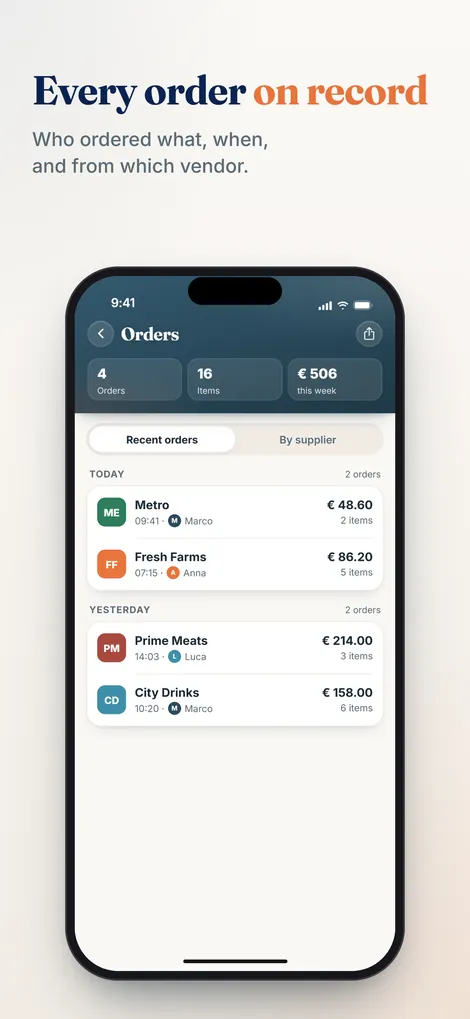
Everyone speaks their own language. Tomatoes, pomodori and Tomaten end up as a single entry on the list, not three. The head chef reviews, adds and approves. During the rep visit you tick items off instead of retyping them, and the order history is kept for good. The same columns as this template, except that they fill themselves in.
When the paper list hits its limits
Pelican collects your kitchen's needs, sorted automatically, in any language. Runs on the phones you already have. Try it free for 30 days.
Create business and try 30 days freeOrder list FAQs
What should a restaurant order list include?
The item with a clear name, the quantity with its unit, the supplier, the name of the person who added the entry and a box to tick off on delivery. Sorting by category is what turns the list into a working tool, because each supplier only sees their own block.
Is the template really free?
Yes. The Excel and PDF templates are free, with no sign-up and no email address. You can use them as often as you like, adapt them to your business and pass them on to colleagues.
Excel or PDF: which is better for the kitchen?
The PDF, if the list is printed, pinned to the walk-in door and everyone writes on it with a pen. Excel, if one person maintains the list centrally: there you can sort and filter it by category or supplier, and the table grows automatically as you type. As soon as several people report needs at the same time, both reach their limits, and a shared app is the better choice.
How often should a restaurant order stock?
It depends on the category. Fresh produce such as veg, meat and fish is usually ordered two or three times a week or daily; dry goods, frozen and non-food more often weekly. More important than the frequency are fixed order days per supplier that the whole team works to.
How does a digital order list for the whole team work?
Instead of a file there is one shared list that everyone writes to from their own phone, fastest by voice. Pelican recognises item, quantity and unit, files it under the right category and adds the name. The head chef approves, and the order history is kept. What to look for when choosing a tool is covered in the ordering app guide.
Part of the complete guide: Restaurant purchasing. It covers all six stages of the purchasing cycle at a glance.